---
title: Can end users adjust Baseline Correction in the AriaMX software?
description: Baseline Correction
---
[Skip to content](https://help.medicinalgenomics.com/en/can-users-adjust-baseline-correction-in-the-ariamx-software#main-content)
[](https://medicinalgenomics.com)
- [Help Center](https://help.medicinalgenomics.com)
- [Web Store](https://store.medicinalgenomics.com)
Open main navigation
Close main navigation
- [Help Center](https://help.medicinalgenomics.com)
- [Web Store](https://store.medicinalgenomics.com)
- [Contact us](mailto:support@medicinalgenomics.com)
[Contact us](mailto:support@medicinalgenomics.com)
How can we help you?
- There are no suggestions because the search field is empty.
1. [Help Center](https://help.medicinalgenomics.com/en?hsLang=en)
2. [AriaMx](https://help.medicinalgenomics.com/en/ariamx?hsLang=en)
# Can end users adjust Baseline Correction in the AriaMX software?
## Yes, there are instances when manual adjustment of the Baseline Start and/or End Cycle is appropriate.
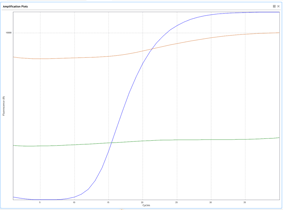
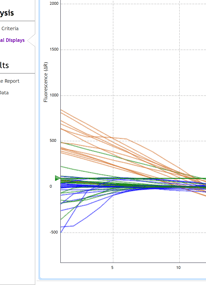
On occasion the automatic baseline setting algorithm within the AriaMX software does not perform appropriately. The algorithm is most often impeded by:
1. A subtle increase in fluorescence shown by the orange line below:
1. 
2. High “tailing at the beginning of run:
1. 
3. A high copy number of target DNA causing strong amplification early in the run.
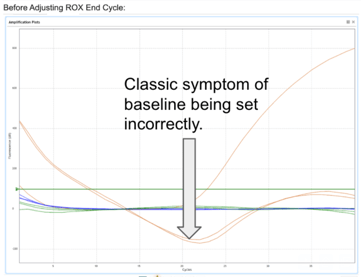
What does an incorrect baseline setting look like?
1. In the ∆R Linear View in the AriaMX software the affected baselines appear rotated clockwise about the X-axis of the graph.
1. 
How can the baseline be manually corrected?
1. Select the Baseline Correction Adjust button.
1. 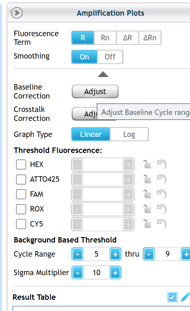
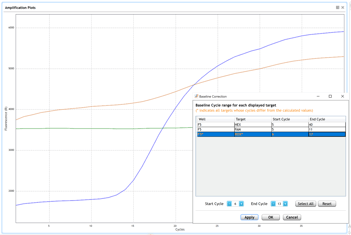
2. While observing the raw fluorescence data adjust the baseline to ignore tailing in cycles 0-7 and end before an increase in fluorescence due to amplification. The baseline cycle range should only include the linear range of the curve at the beginning of a run.
1. 
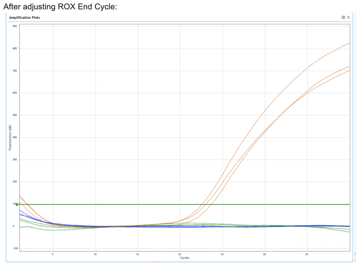
3. After correcting the baseline range, the linear curves look appropriate and now a Cq is generated in the ∆R Linear and Log views and the results may be reported.
1. 
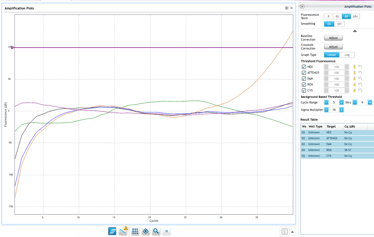
4. The end cycle should never be set to 40 by the operator because this can mask positive results. When late Cq values are generated check the No Template Control (NTC) samples to see if they are showing a Cq value in that cycle range as well. If the NTC wells are showing a shift in the same cycle then likely there is something causing a non-specific increase in fluorescence, such as amplicon contamination, Primer dimer formation in a SYBR Green reaction or non-specific probe degradation in a Taqman reaction which would suggest that it isn’t a true positive result. This type of result should be investigated by performing additional analysis of the samples on a new qPCR run rather than making adjustments to the software. Late Cq values as shown in the image below could be the result of low level contamination and should be reported as positive or investigated further based on your laboratory procedures.
1. 
Further information from Agilent’s [Introduction to Quantitative PCR Methods and Applications Guide](https://www.agilent.com/library/brochures/Brochure_Guide%20to%20QPCR_IN70200C.pdf) (page 62) and the [Aria Real-Time PCR Software User Manual](https://www.agilent.com/cs/library/usermanuals/public/K8930-90013.pdf?srsltid=AfmBOoq9Kaverk4jVfb5qFBkWW4wrPF6YqmOgQoWBDRa_BEbEiuVIvJO)(page 199) can be found below.
**Manually Defined Baseline Range**
With either the adaptive or non- adaptive baseline methods, it is possible that the baseline range selected by the software can be inaccurate (although this is less likely with the adaptive baseline). This would result in the amplification plots being skewed in such a way that they cross the threshold at a different cycle than they would have if the baseline had been set more accurately. This will give inaccurate Ct values and thus will directly affect the calculation of the quantity of these samples. If this sort of inaccurate baseline setting occurs, it is most often the result of an amplification plot with a non- standard shape, which can happen when the starting sample concentration is quite high and the Cts very early (less than cycle 15). To correct for this, the starting and ending cycles can be set manually in the Baseline Correction dialog box. When selecting the cycle range, it is best to view the amplification plots in the R (multicomponent) mode and search for flat segments in the early cycles, where there is little or no increase in the detected fluorescence. For the best results, the range selected should be as broad as possible, without including the first cycle in which there is a perceptible increase in fluorescence above background or any tailing in the early cycles. When first viewing the amplification plots, it is recommended to use the Adaptive Baseline. Change the fluorescence to dR (baseline corrected fluorescence) and verify that the baselines for the reporter dyes remain flat and the curves are not tilted over. If the curves look abnormal in the dR view, it may be necessary to manually adjust the baseline range for those profiles. To do this, select the Adjust button next to Baseline Correction in Graphical Displays and highlight the well and dye you want to adjust. You will then need to enter the cycle range in which this profile is flat, above the tailing and below where it starts to ramp up. After adjusting these wells, push the OK button to close this window.
Please reach out to [support@medicinalgenomics.com](mailto:support@medicinalgenomics.com) if you have any questions and we will be happy to provide additional guidance.
- [Frequently Asked Questions](https://help.medicinalgenomics.com/en/frequently-asked-questions?hsLang=en)
- [Product Updates](https://help.medicinalgenomics.com/en/product-updates?hsLang=en)
- [Sample Purification](https://help.medicinalgenomics.com/en/sample-purification?hsLang=en#main-content)
- [Grim Reefer Free DNA Removal](https://help.medicinalgenomics.com/en/sample-purification?hsLang=en#grim-reefer-free-dna-removal)
- [Internal Control](https://help.medicinalgenomics.com/en/sample-purification?hsLang=en#internal-control)
- [AOAC](https://help.medicinalgenomics.com/en/sample-purification?hsLang=en#aoac)
- [Early Detection Plant Screening](https://help.medicinalgenomics.com/en/early-detection-plant-screening?hsLang=en#main-content)
- [FemINDICAtor® Plant Gender Testing](https://help.medicinalgenomics.com/en/early-detection-plant-screening?hsLang=en#femindicator-plant-gender-testing)
- [PathoSEEK® Plant Pathogen Testing](https://help.medicinalgenomics.com/en/early-detection-plant-screening?hsLang=en#pathoseek-plant-pathogen-testing)
- [Virus Assays](https://help.medicinalgenomics.com/en/early-detection-plant-screening?hsLang=en#virus-assays)
- [Genomic Services](https://help.medicinalgenomics.com/en/genomic-services?hsLang=en#main-content)
- [StrainSEEK®](https://help.medicinalgenomics.com/en/genomic-services?hsLang=en#strainseek)
- [Kannapedia](https://help.medicinalgenomics.com/en/genomic-services?hsLang=en#kannapedia)
- [Microbial Safety Testing](https://help.medicinalgenomics.com/en/microbial-safety-testing?hsLang=en#main-content)
- [Hardware and Consumables](https://help.medicinalgenomics.com/en/microbial-safety-testing?hsLang=en#hardware-and-consumables)
- [Validation](https://help.medicinalgenomics.com/en/microbial-safety-testing?hsLang=en#validation)
- [PathoSEEK](https://help.medicinalgenomics.com/en/microbial-safety-testing?hsLang=en#pathoseek)
- [Aspergillus](https://help.medicinalgenomics.com/en/microbial-safety-testing?hsLang=en#aspergillus)
- [Mic qPCR Instrument](https://help.medicinalgenomics.com/en/mic-qpcr-instrument?hsLang=en)
- [AriaMx](https://help.medicinalgenomics.com/en/ariamx?hsLang=en)
- [qPCR Tips & Tricks](https://help.medicinalgenomics.com/en/qpcr-tips-tricks?hsLang=en)
- [Automation](https://help.medicinalgenomics.com/en/automation?hsLang=en)
- [Product Specifications](https://help.medicinalgenomics.com/en/product-specifications?hsLang=en)
- [Contact Support](mailto:support@medicinalgenomics.com)
- [Sign Up for Our Newsletter](https://share.hsforms.com/1rFnAme5nTYuGeU0IdkMQGA20xr2)
- [Join Us at CannMed 26](https://cannmedevents.com)
[](http://www.medicinalgenomics.com)
Medicinal Genomics Help Center
Copyright © 2026, Medicinal Genomics